Documentation
User Activity Emulator is a category of software designed for automated testing and reproducing user behavior (UI/E2E testing, stress testing). It automatically switches between applications, types text, and moves the mouse cursor while supporting recording and playback of recorded actions.
Portable Installation
- Unpack the
portable_uae_x_x_x.ziparchive into any target directory (e.g.,C:\Tools\UAE\). - Run
uae.exe. The application is completely portable and requires no installer or elevated system rights.
1. Scenario Configuration (Scenarios Tab)
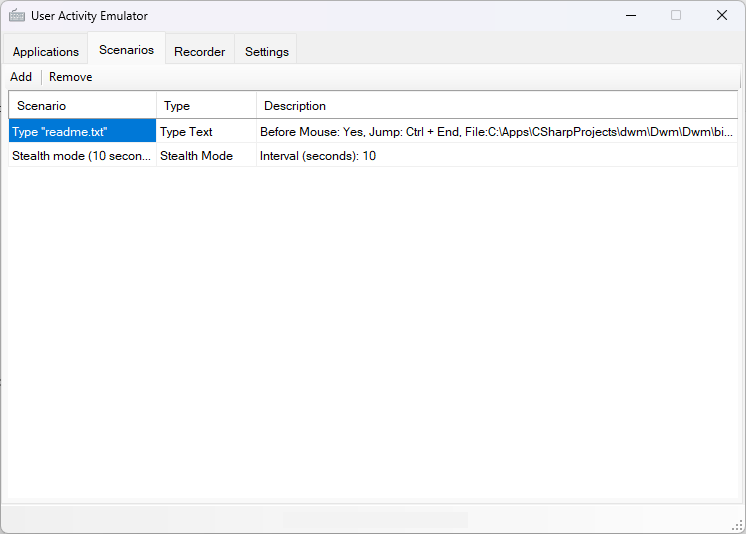
The Scenarios tab enables you to create, edit, and remove predefined automation tasks (mouse path execution, document text typing, background stealth movements).
Creating a Scenario:
- Click Add in the main toolbar.
- Enter a title into the Scenario Name field.
- Select one of the main action modes:
- Move Mouse: Emulates mouse movement. Includes options for performing a prior mouse click at specified coordinates (X, Y) via Left or Right button.
- Type Text: Keypress emulation using a plain text file. Specify the target text path, set optional pre-clicks, and configure document navigation shortcuts (e.g.,
Ctrl + End). - Stealth Mode: Background mouse activity and safe clicking in non-interactive/hidden areas at defined second intervals.
- Click Save to store the scenario.
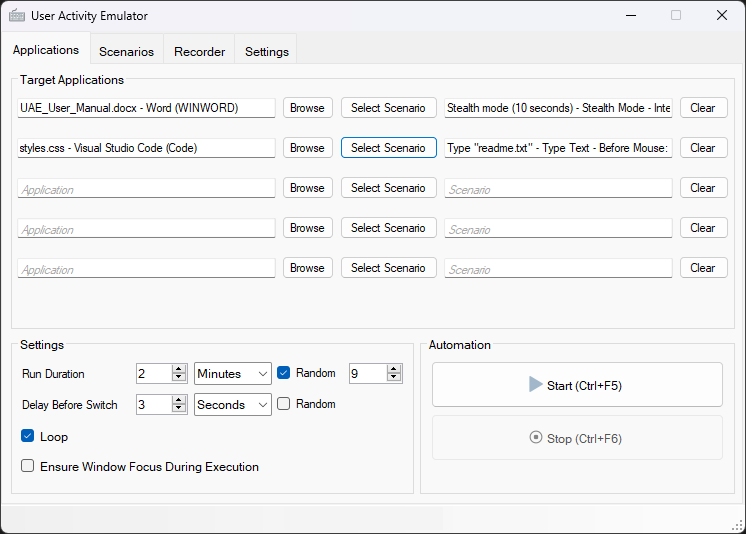
2. Application Setup & Execution (Applications Tab)
Binds active application windows to configured scenarios and controls cycle settings.
Configuring Target Applications:
- Click Browse next to an active application row to select a target window.
- Click Select Scenario to map the window to a saved scenario.
- Click Clear to remove a target row.
Execution Parameters:
- Run Duration: Total task runtime in minutes. Toggle Random to set a randomized runtime interval.
- Delay Before Switch: Pause duration before switching focus to the next application (in seconds, with optional Random variance).
- Loop: Continuously repeats the execution queue across selected applications.
- Ensure Window Focus During Execution: Brings target windows to the foreground before performing actions.
Controls:
- Start (Ctrl+F5): Launches automation.
- Stop (Ctrl+F6): Ends execution.
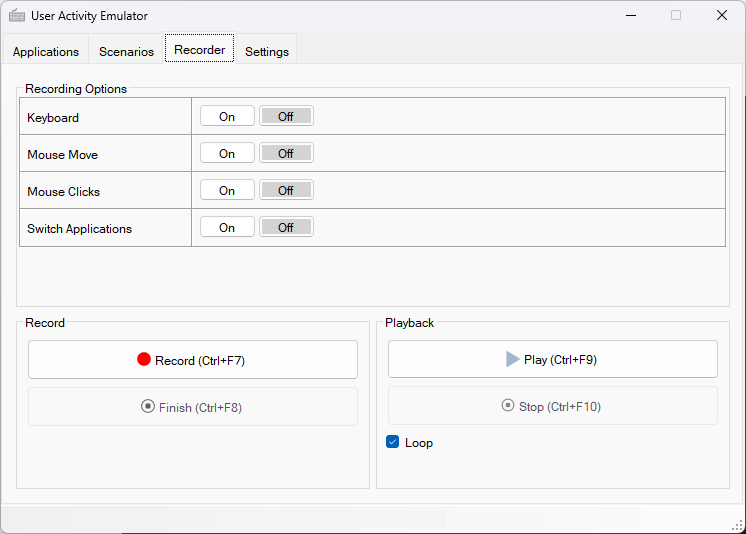
3. Action Recording & Playback (Recorder Tab)
Captures real-time user input and executes macro playback.
Recording Options:
Enable (On) or Disable (Off) event capture for:
- Keyboard: Keypresses and keyboard input.
- Mouse Move: Cursor paths and spatial movement.
- Mouse Clicks: Left, right, and middle mouse button triggers.
- Switch Applications: Window switching and focus changes.
Controls:
- Record (Ctrl+F7): Begins input capture.
- Finish (Ctrl+F8): Completes capture session.
- Play (Ctrl+F9): Runs recorded macro (check Loop to repeat continuously).
- Stop (Ctrl+F10): Halts macro execution.
4. Global Configuration (Settings Tab)
- Minimize to System Tray: Closes main window to system notification area when minimized.
- Minimize on Play / Record: Automatically minimizes UAE when recording or macro playback begins.
- Show Status Overlay: Displays on-screen activity banner during automation runs.
- Always on Top: Pins application window above all other windows.
- Turn Off All Events at: Schedules full application shutdown at a designated time (hours/minutes).
- Window Title: Sets custom main window title bar text.
Donate ♥
If you find this application useful, feel free to support its ongoing development!
Buy me a coffee
Quick and easy single support or membership via Ko-fi.
Crypto Donations
Binance

Bybit
User Activity Emulator
A lightweight Windows application for UI/E2E and stress testing that automates application switching, text typing, and mouse movement with full action recording and playback.
Getting started
Install the application and start emulating activity.
Full Automation
Seamlessly switches active apps, types text, and moves the cursor.
Record & Playback
Captures user actions for instant, exact scenario replay.
Windows
Built specifically for Windows desktop environments.